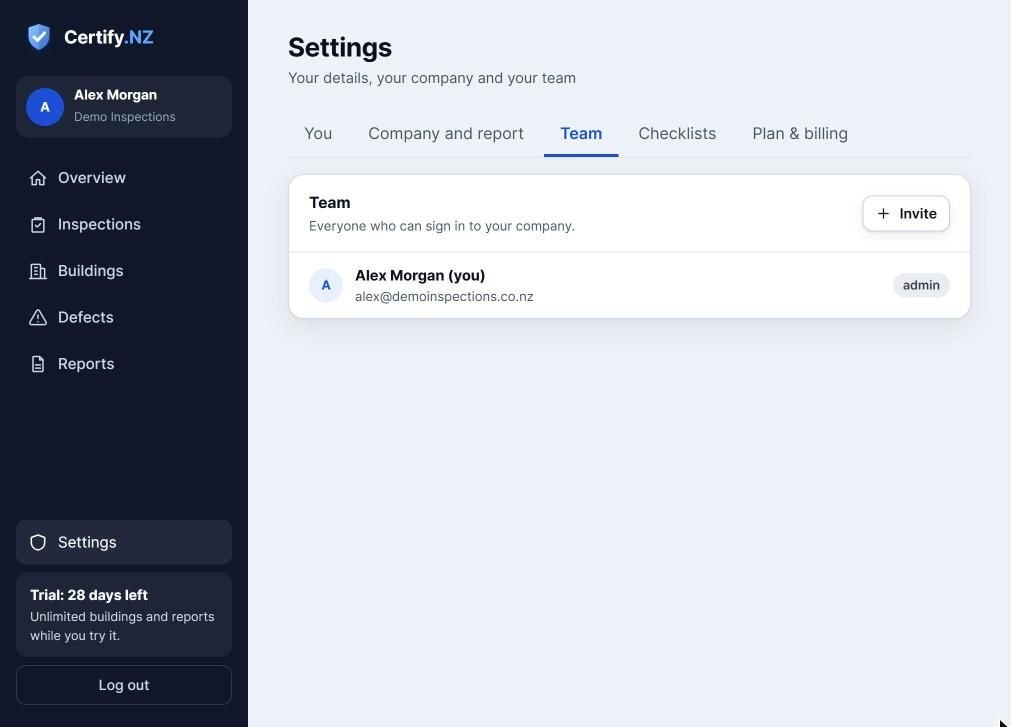
Invite everyone who works on your inspections from Settings → Team. Office staff and reviewers are free; you pay per IQP.
Invite your team
- Go to Settings → Team and tap Invite.
- Enter their details and choose a role.
| Role | What they can do |
|---|---|
| Admin | Everything, including billing and team |
| IQP | Inspects and issues reports |
| Reviewer | Checks and issues reports |
| Office | Buildings, scheduling, emailing reports |
Customise a checklist
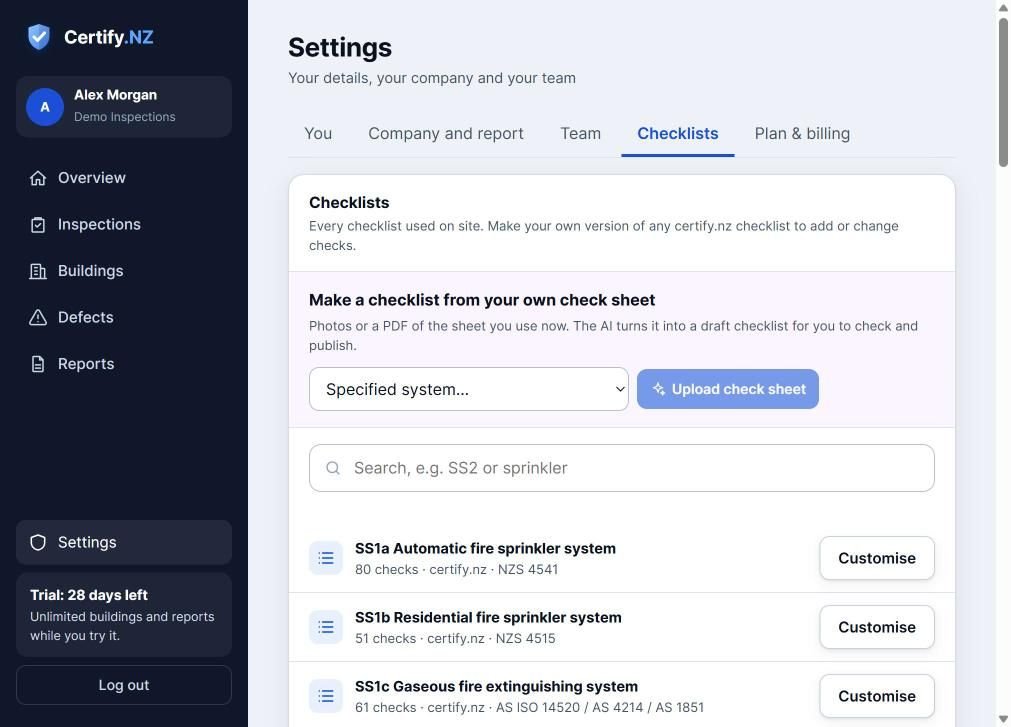
certify.nz has a starting checklist for every specified system. To change one, go to Settings → Checklists and tap Customise beside it. Add, change or remove checks to suit how you work.
Already have your own check sheets? Choose the specified system, then tap Upload check sheet with photos or a PDF. AI turns it into a draft checklist for you to check and publish.
Tip: The building's compliance schedule decides what must be inspected. Edit a check whenever the schedule asks for something different.