Open a building and tap Start inspection. Each specified system has its own checklist, split into sections. Everything saves on your device first and syncs when there is signal.
Work through the checklist
- Open the building and tap Start inspection. (From Inspections → New inspection you choose the building first.)
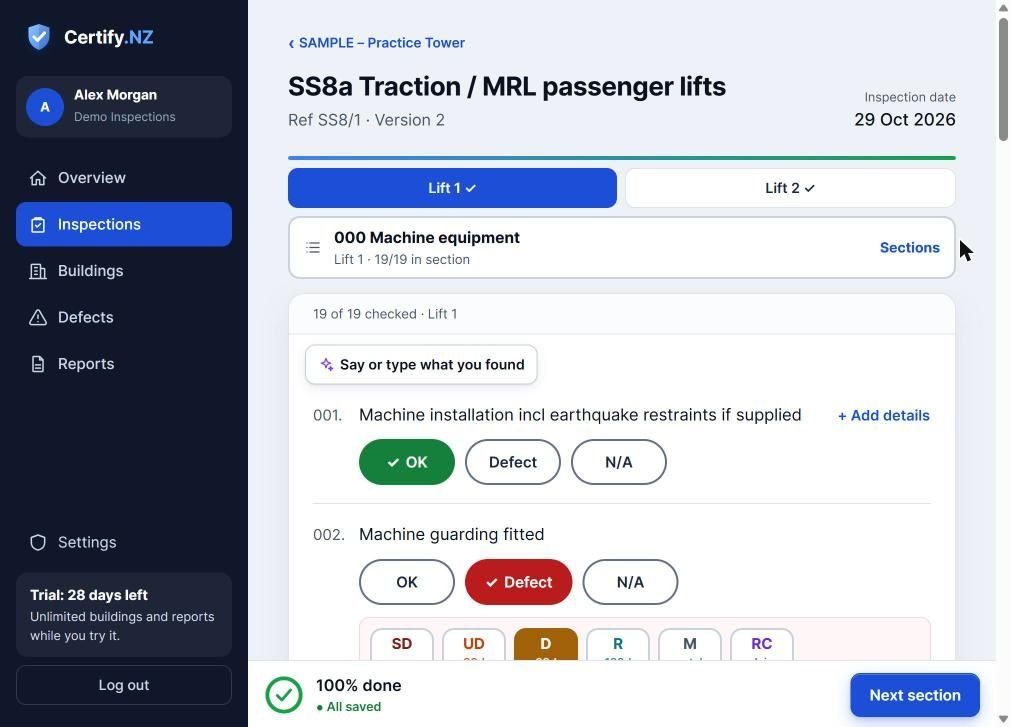
- For each check, tap OK, Defect or N/A.
- Where a check asks for a Reading (such as brake lining thickness in mm), enter it, or tap Read from photo.
- Tap + Add details to add a note to any check.
- Tap Next section to move on, or Sections to jump. On a phone you can also swipe left or right.
Save time
- Mark rest OK: answer one check in a section, then tap Mark rest OK to mark the rest of that section OK. An Undo button appears for 8 seconds in case you tapped it by mistake.
- Say or type what you found: describe the section in your own words and certify.nz fills in the checks for you to confirm.
- Last inspection: on a repeat inspection, previous answers are shown so you can confirm they are Still correct.
No signal? Keep going
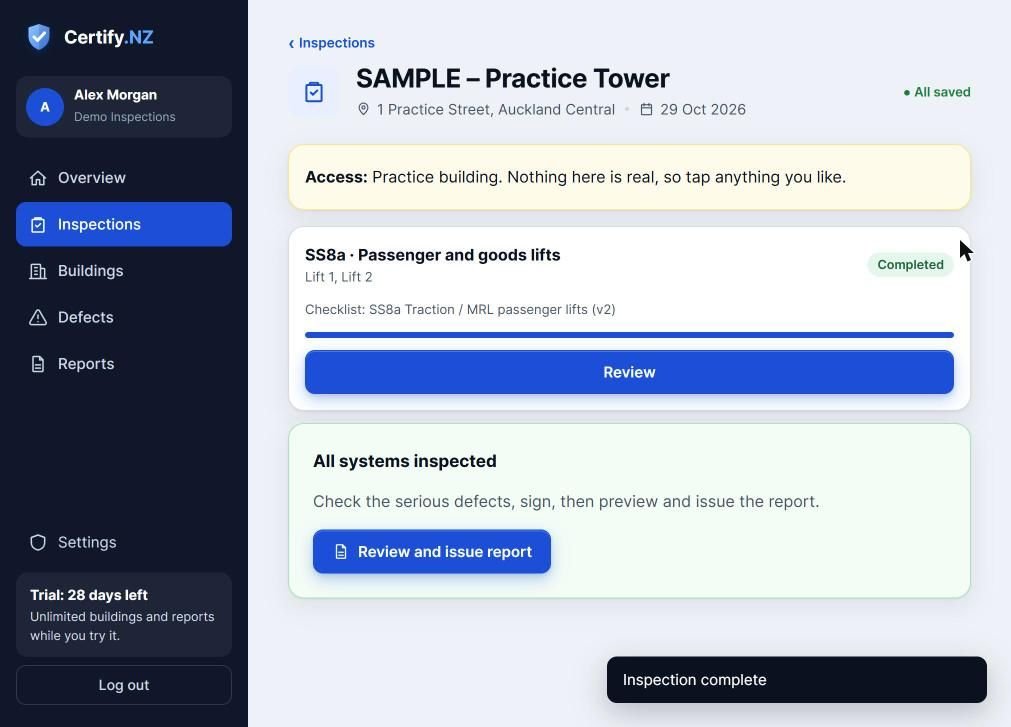
Checks, notes and photos save on your phone first. The bar at the bottom shows All saved once everything has synced. If you open an inspection without signal, you see the copy saved on that device.
Complete the inspection
When every system reaches 100%, tap Complete inspection. You can still reopen it to edit; the change is recorded.
Questions
Do I need signal on site?
No. Everything saves on the device and syncs when there is signal. Wait for All saved before you close the app.
Can I edit a completed inspection?
Yes. Open it and tap Reopen to edit. The change is recorded.