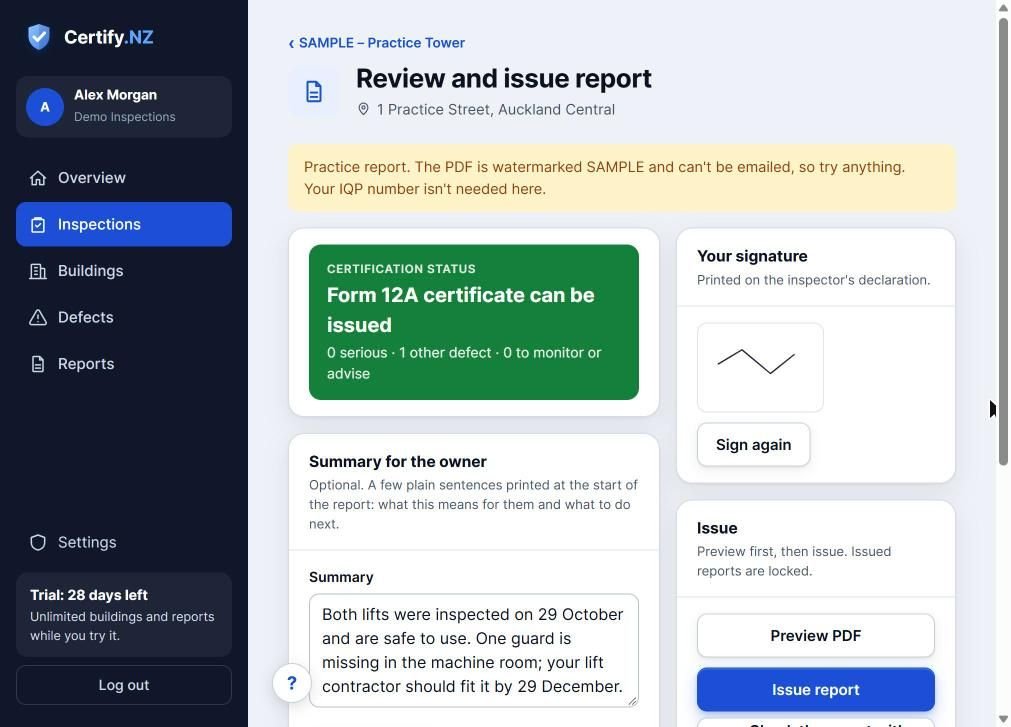
After you complete an inspection, tap Review and issue report. Check the certification status, sign, preview the PDF, then issue it. Issued reports are locked and get a public verify code.
Review the report
- On the completed inspection, tap Review and issue report.
- Check the Certification status: whether the Form 12A can be issued, and how many serious and other defects there are.
- Optional: write a short Summary for the owner, or tap Write it for me. It is printed at the start of the report.
- Sign under Your signature. It is printed on the inspector's declaration and saved for next time.
- Tap Preview PDF to see the report exactly as the owner will.
Issue it
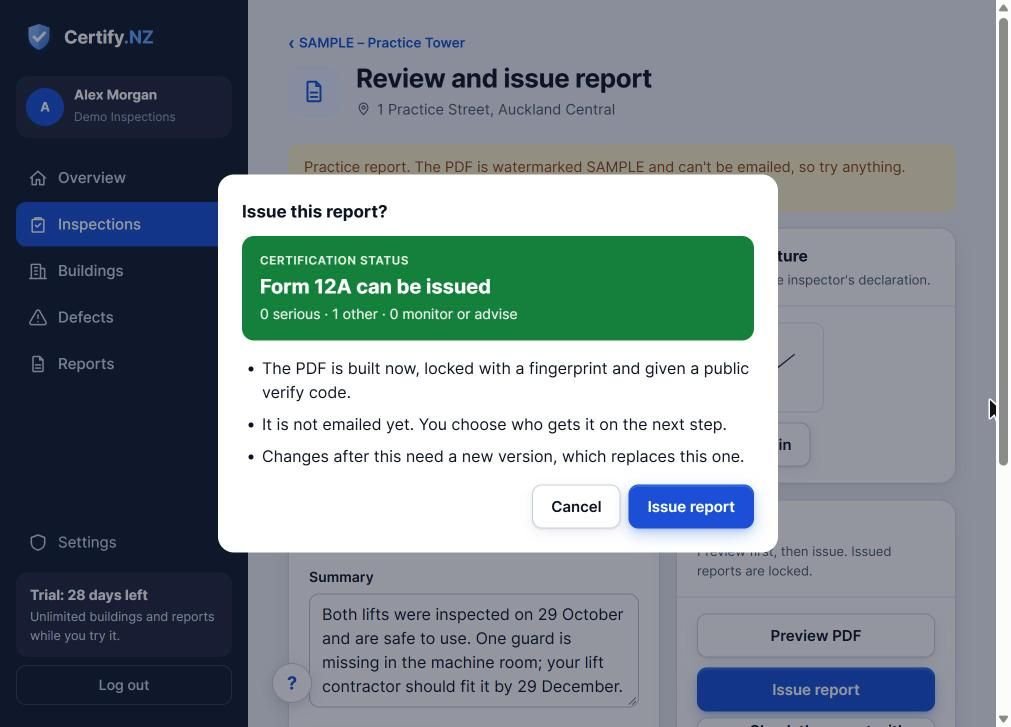
- Tap Issue report, then confirm.
- The PDF is built, locked with a fingerprint and given a public verify code.
- It is not emailed yet. On the next step you choose who gets it.
Find past reports
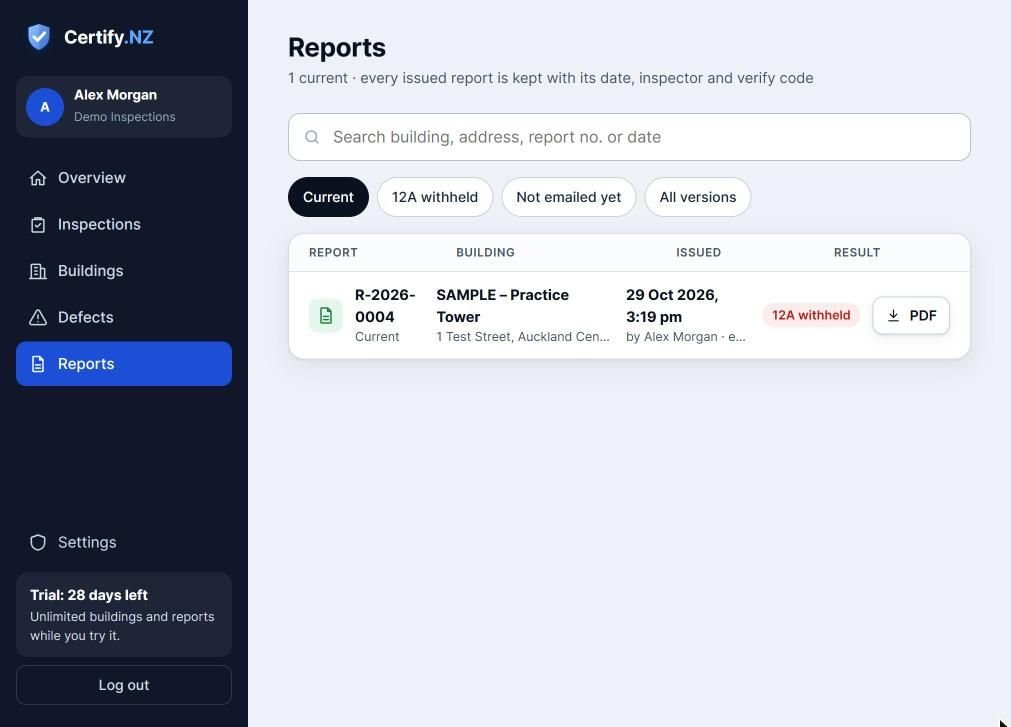
The Reports page keeps every issued report with its date, inspector and verify code. Filter by Current, 12A withheld, Not emailed yet or All versions, and tap PDF to download.
Questions
Can I change a report after issuing it?
Not that version. Make your changes and issue a new version; it replaces the old one, and both are kept under All versions.
Why is the Issue button not working?
Real reports need your IQP registration number. Add it in Settings → You.