Every issued report carries a verify code. Enter it at certify.nz/verify to see who issued the report and when, and whether it is the current version.
Check a report code
- Go to certify.nz/verify.
- Enter the verify code printed on the report.
- The page shows the building, who issued the report, when, and whether it is current.
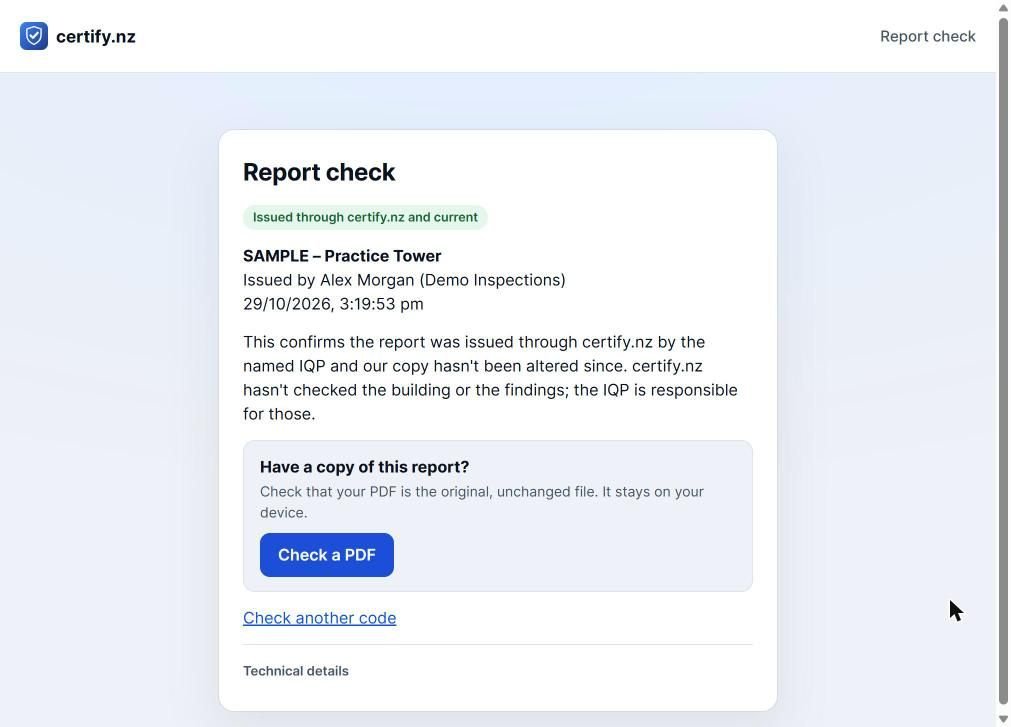
Check a PDF
If you have a copy of the report, tap Check a PDF and choose the file. Your browser compares its fingerprint with the issued report. The file never leaves your device.
What the check means
A match confirms the report was issued through certify.nz by the named IQP and hasn't been altered. certify.nz doesn't inspect the building or check the findings; the IQP is responsible for those.
Questions
What if the code is not found?
Check every character (0 and O look alike), then contact the IQP who issued the report.