Each building in certify.nz mirrors its compliance schedule: the schedule number, BWOF anniversary, council and the specified systems it lists.
Add a building
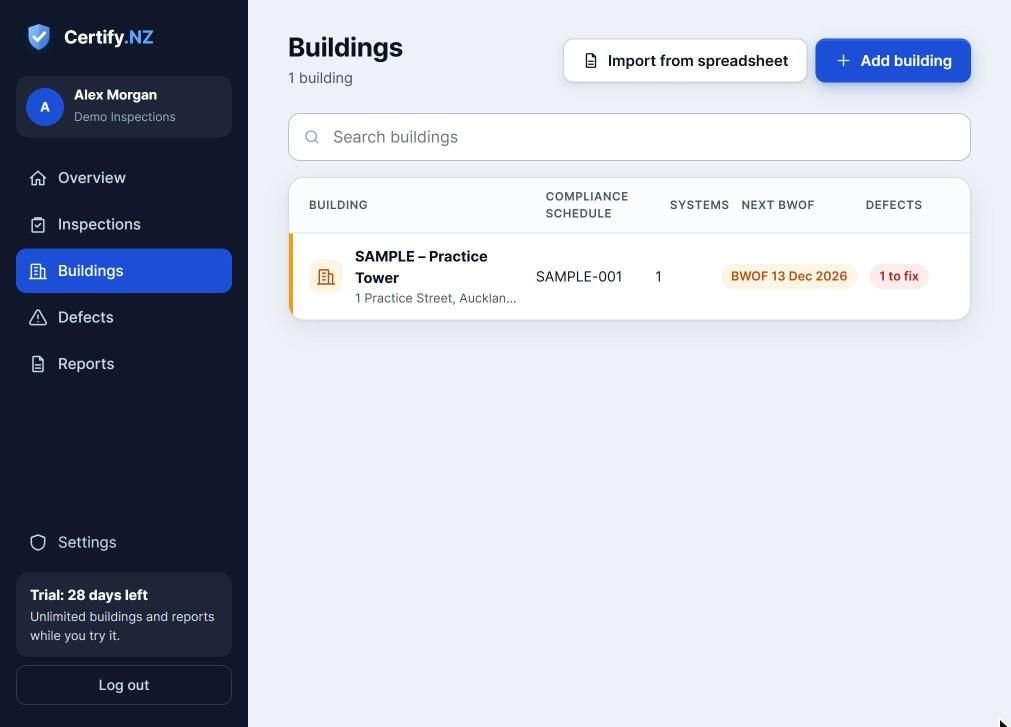
- Go to Buildings and tap Add building.
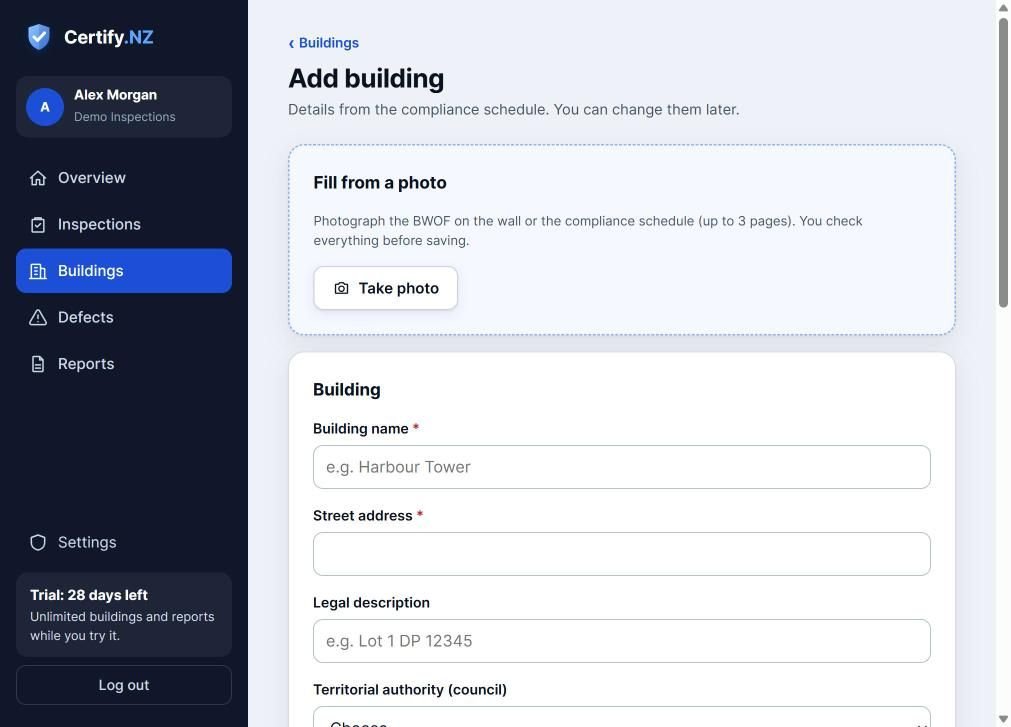
- Optional: tap Take photo and photograph the BWOF on the wall or the compliance schedule (up to 3 pages). The details are filled in for you to check.
- Enter the building name, street address, legal description and council.
- Under Compliance schedule, enter the number, the issue date and the BWOF anniversary (it defaults to the issue date).
- Add the maintenance contractor and any access notes. Codes and keys are encrypted: only IQPs and admins can see them, and each view is logged.
- Tap Save building.
Add specified systems and units
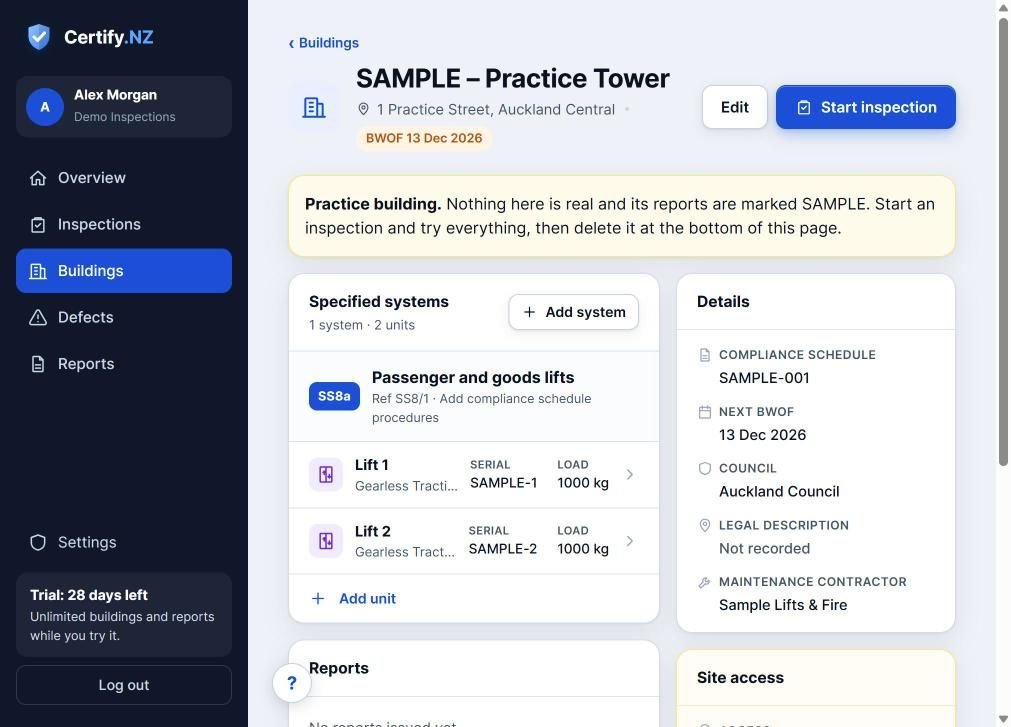
- On the building page, tap Add system and choose each specified system on the compliance schedule.
- For systems with several units (such as lifts), tap Add unit for each one. Reports then show every unit separately.
- Add the owner or building manager under Contacts. Reports are emailed to them from the report page.
Bring your whole client list across
Tap Import from spreadsheet on the Buildings page. Save your spreadsheet as CSV first: in Excel, choose File → Save As → CSV UTF-8.
Questions
What if a building has a system you don't inspect?
Add only the systems you inspect. Each specified system gets its own checklist and its own section of the report.